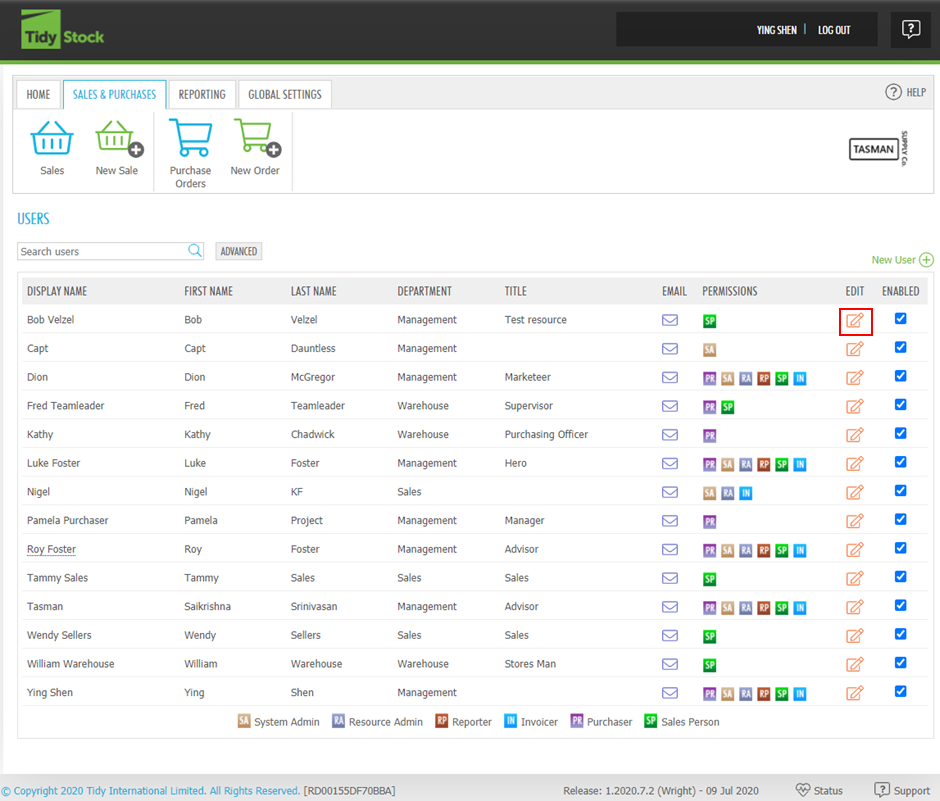
Add or edit a user
Go to GLOBAL SETTINGS > Users > New User.
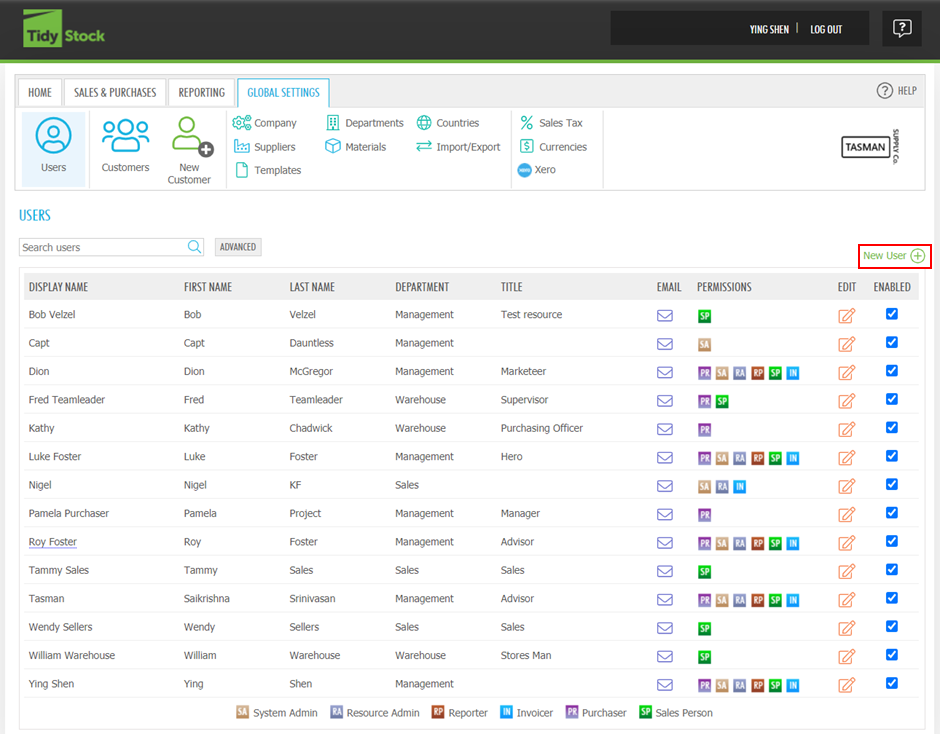
The NEW USER screen allows you to specify the users login details, personal information (including the Department created previously), as well as their role within the company.
Login Type - Users can be assigned a Login ID and Password, but TidyStock also offers the convenience of using an existing 3rd party account, such as a WindowsLive ID, Google account, or even a Facebook account.
Fill in the LOGIN DETAILS and PERSONAL DETAILS sections, you can read Get started - Login info to understand the meaning of these fields.
Select the roles you want to assign to this user. Each user can have multiple roles. To understand each role, hover your mouse over the  beside the role name or read Global settings - Users - User roles.
To allow API access, tick Allow API Access at the bottom of the screen, it will automatically generate an API token.
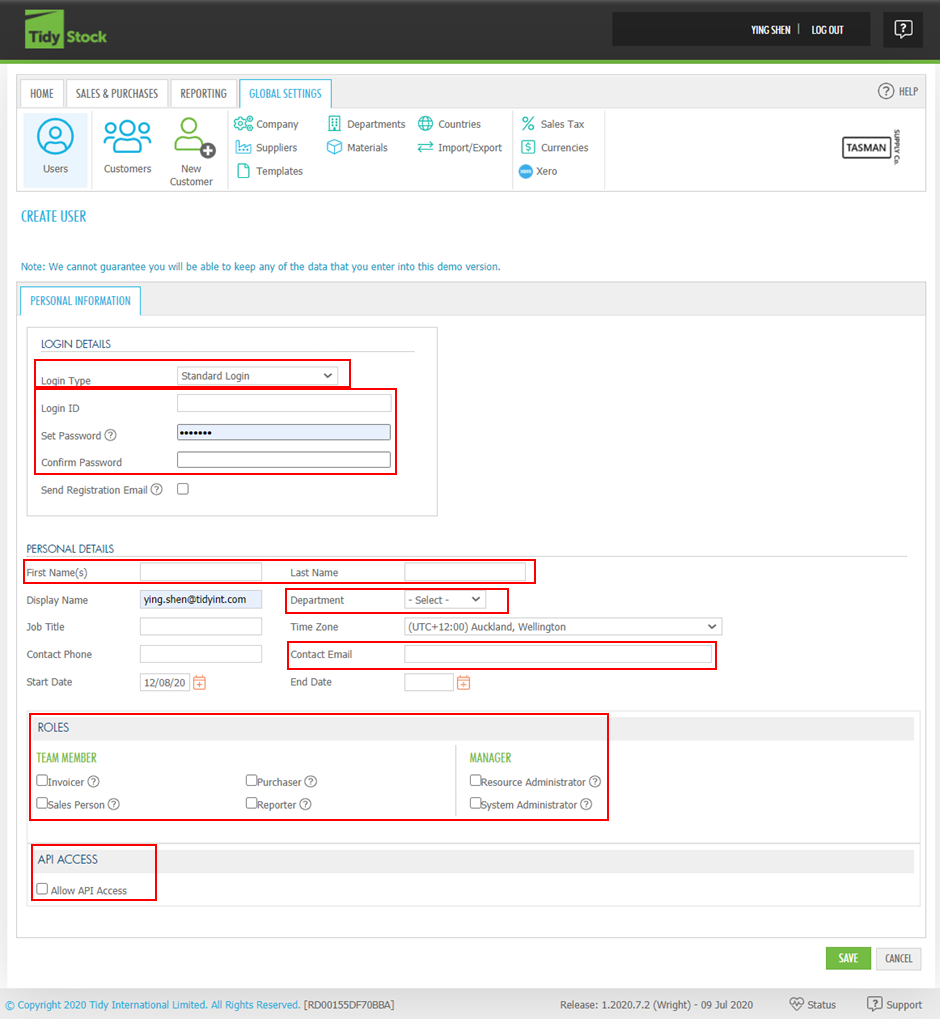
The Login ID, Set Password, Confirm Password, First Name(s), Last Name, Department and Contact Email are mandatory fields. To understand how to set up Departments, read Global settings - Departments.
Finally, click the SAVE button. The user is now created, you can view the user on the USERS screen. If you want to change the users information, click EDIT  beside their name.